Turn your phone into a wireless mouse and remote controller
MouseHero gives you a low-latency touchpad, keyboard, media controls, and Wake-on-LAN tools for the computer in front of you.
 Get Started
 Download Mobile App
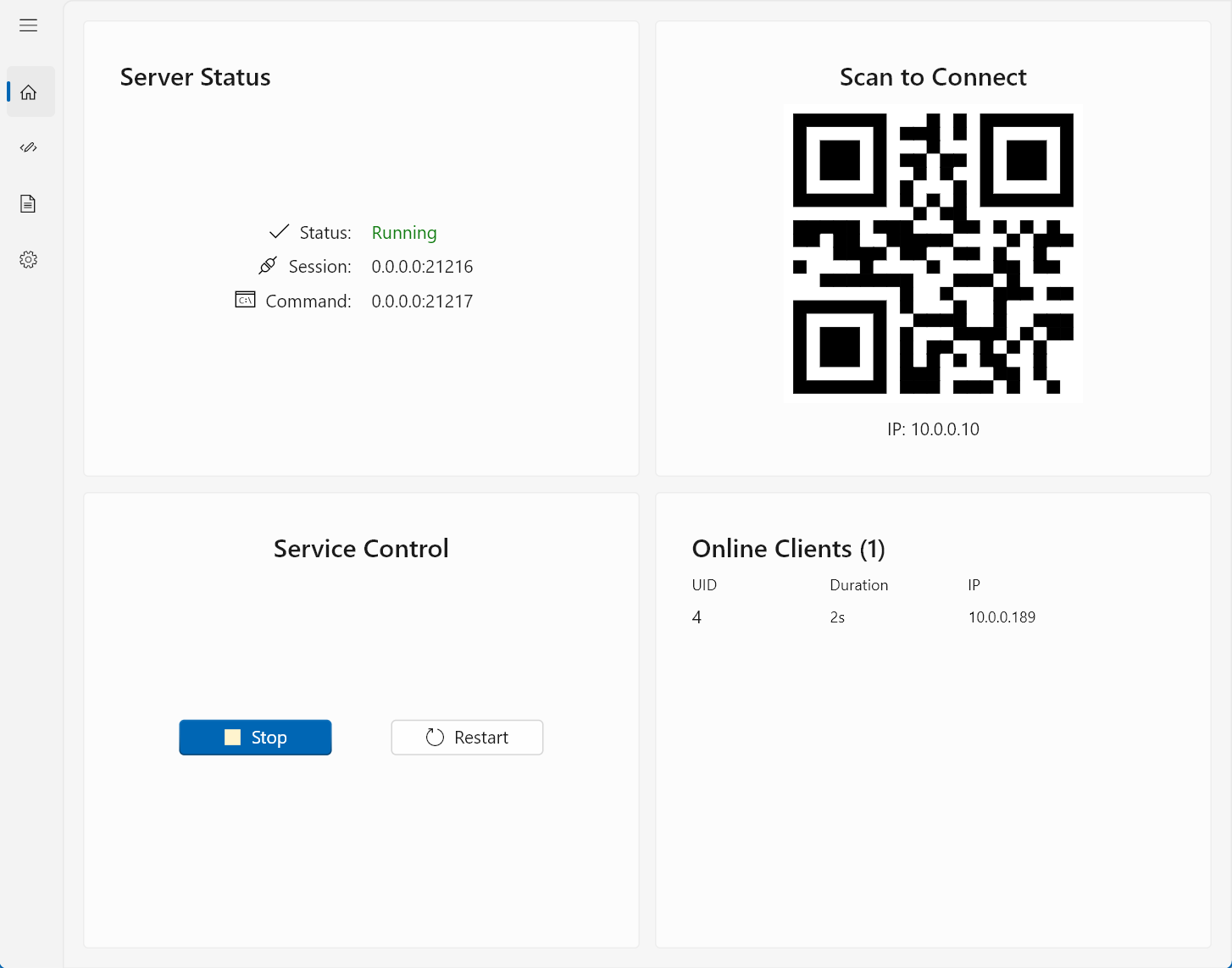
Get started in three steps
Set up MouseHero in the right order so you can control your computer in minutes.

Install the desktop server
Download and open the server on the Windows, macOS, or Linux computer you want to control.

Install the mobile app
Install MouseHero on your phone from the App Store or Google Play.

Connect on the same Wi-Fi
Make sure both devices are on the same local network, then open the app and connect.
Step 1: Install the desktop server
Choose the build for the computer you want to control. MouseHero currently supports Windows, macOS, and Linux desktop hosts.
Step 2: Install the mobile app
Install MouseHero on your phone, then connect to the desktop server from the same Wi-Fi network.

Android(Beta)
For Android 8.0 and above
Join the test group
Join the Google Group to get access to the Android beta build.
Everything you need for quick remote control
Built for sofa control, presentations, media playback, and waking up the computer you want to use.

Low-Latency Touchpad
Smooth pointer control that feels close to a native trackpad.

Phone Keyboard Input
Type passwords, search terms, and short messages from your phone.

Full Media Control
Play, pause, seek, switch tracks, and adjust volume without leaving the couch.

Remote Power Controls
Wake-on-LAN support plus restart and shutdown shortcuts when supported.

Cross-Platform
Works across iOS, Android, Windows, macOS, and Linux.

LAN Direct Connection
No cloud relay for the control path, which keeps things fast and private.
Where MouseHero fits best
A focused remote-control tool for the moments when walking back to your computer breaks the flow.


Couch Control
Pause playback, switch episodes, and move the cursor from the couch.
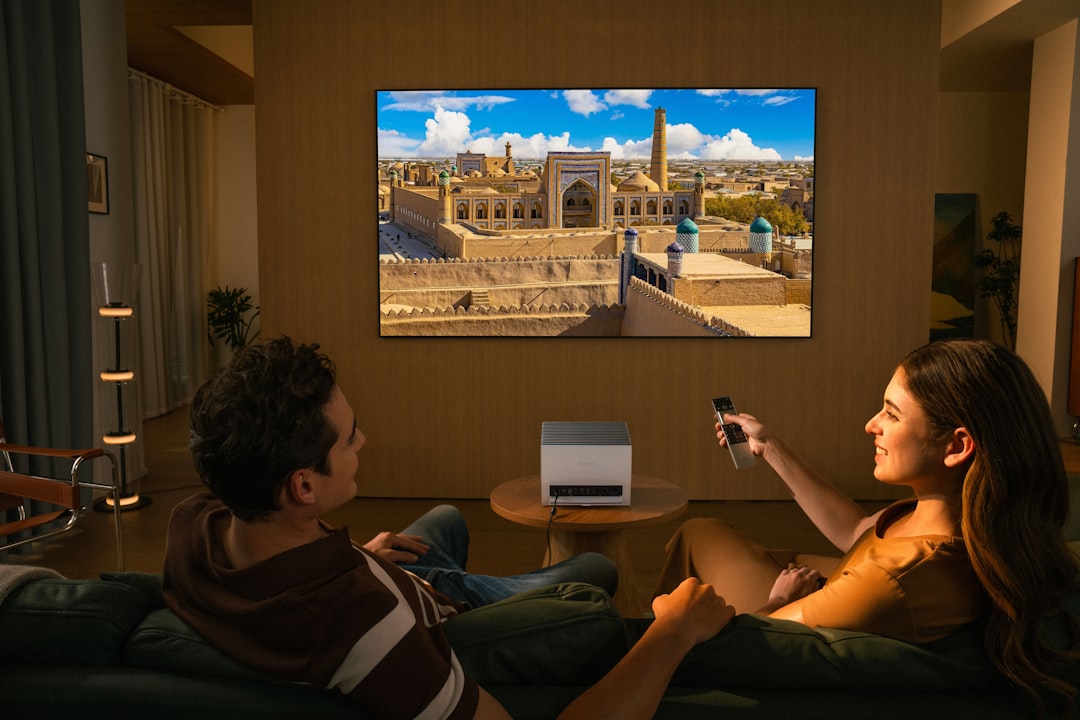

Home Theater Mode
Use your phone as a simple remote for subtitles, volume, and playback.


Presentation Control
Stay away from the desk while handling slides and quick keyboard input.


Wake a Nearby Computer
Wake the computer you plan to use without walking back to it first.
What the mobile app looks like
A focused interface for touchpad input, keyboard entry, media control, and power shortcuts.
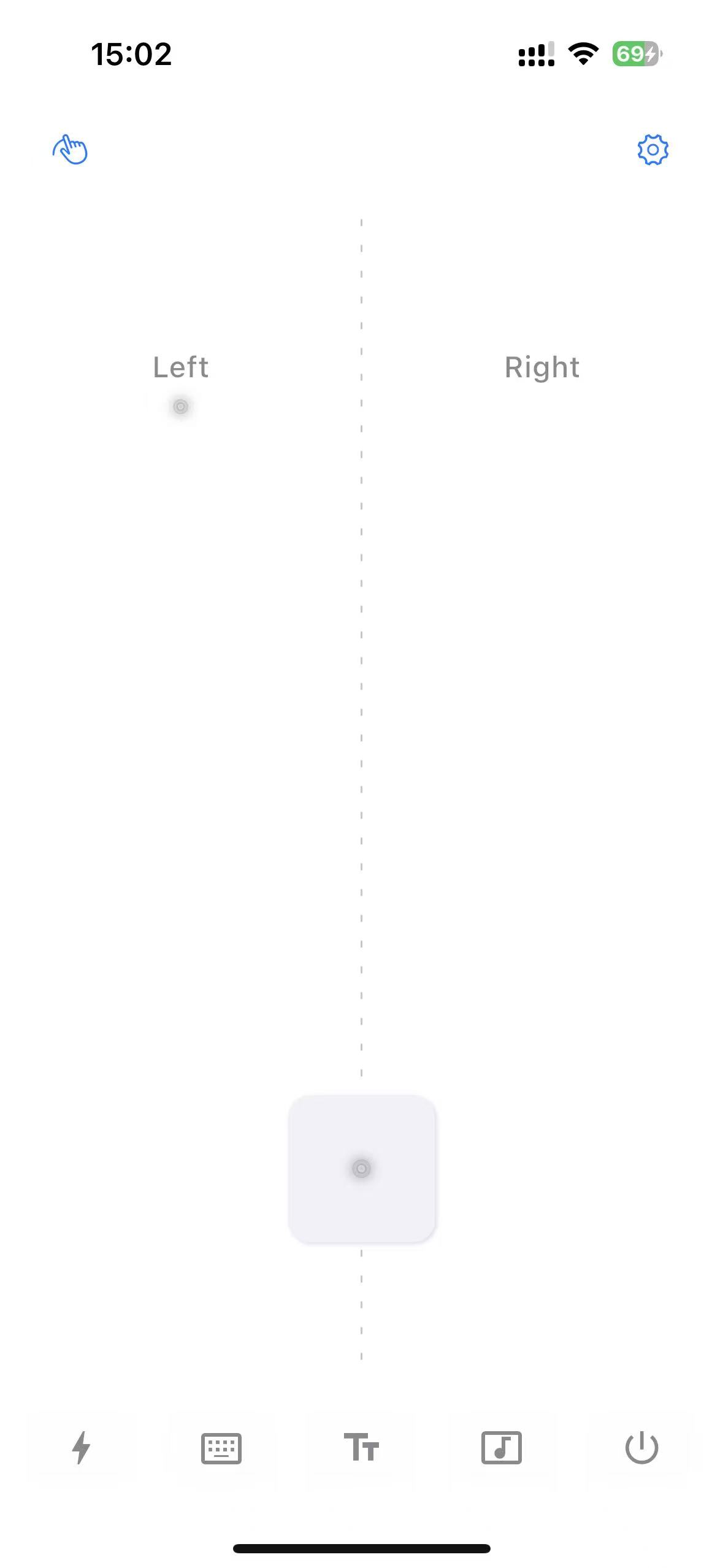
Touchpad Mode
Precise and smooth touch control
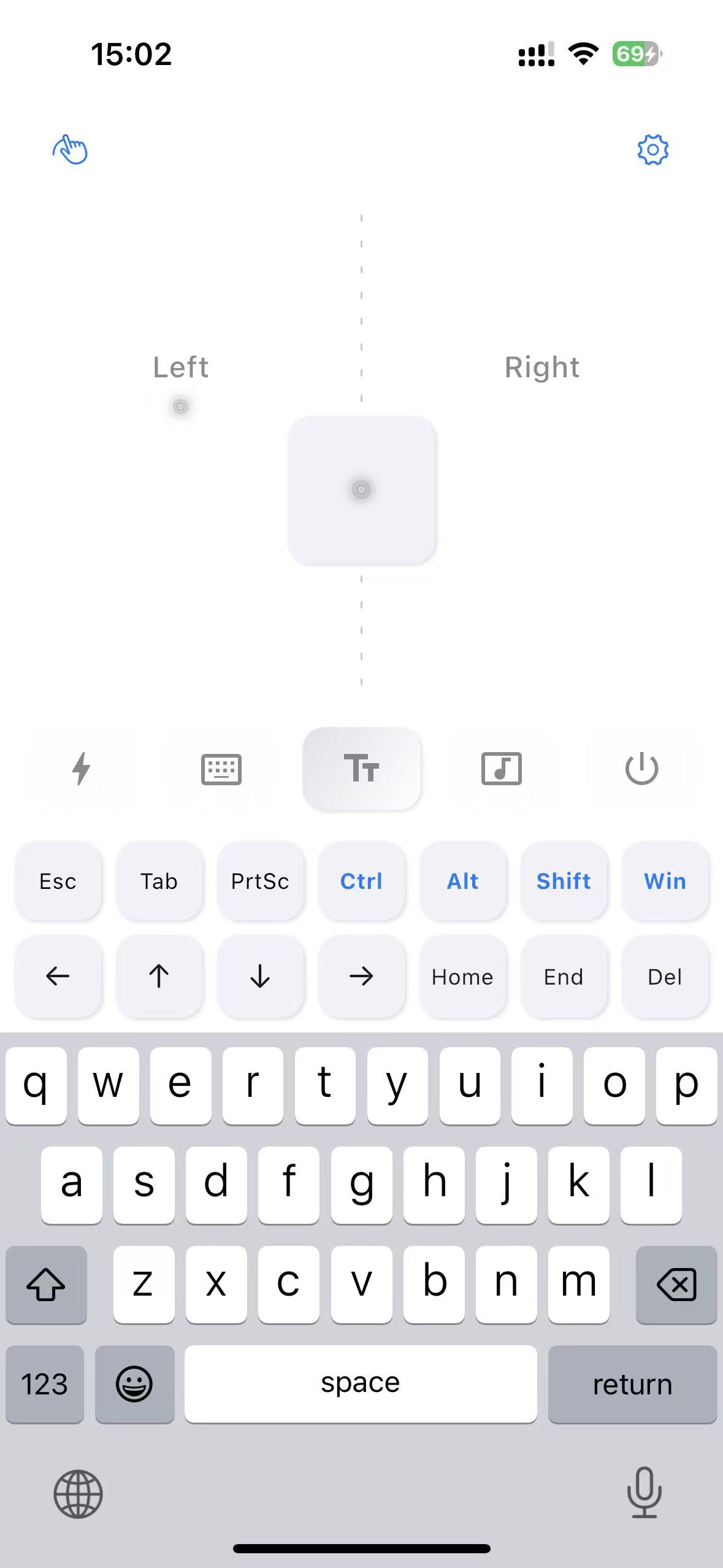
Keyboard Tool
Fast text input
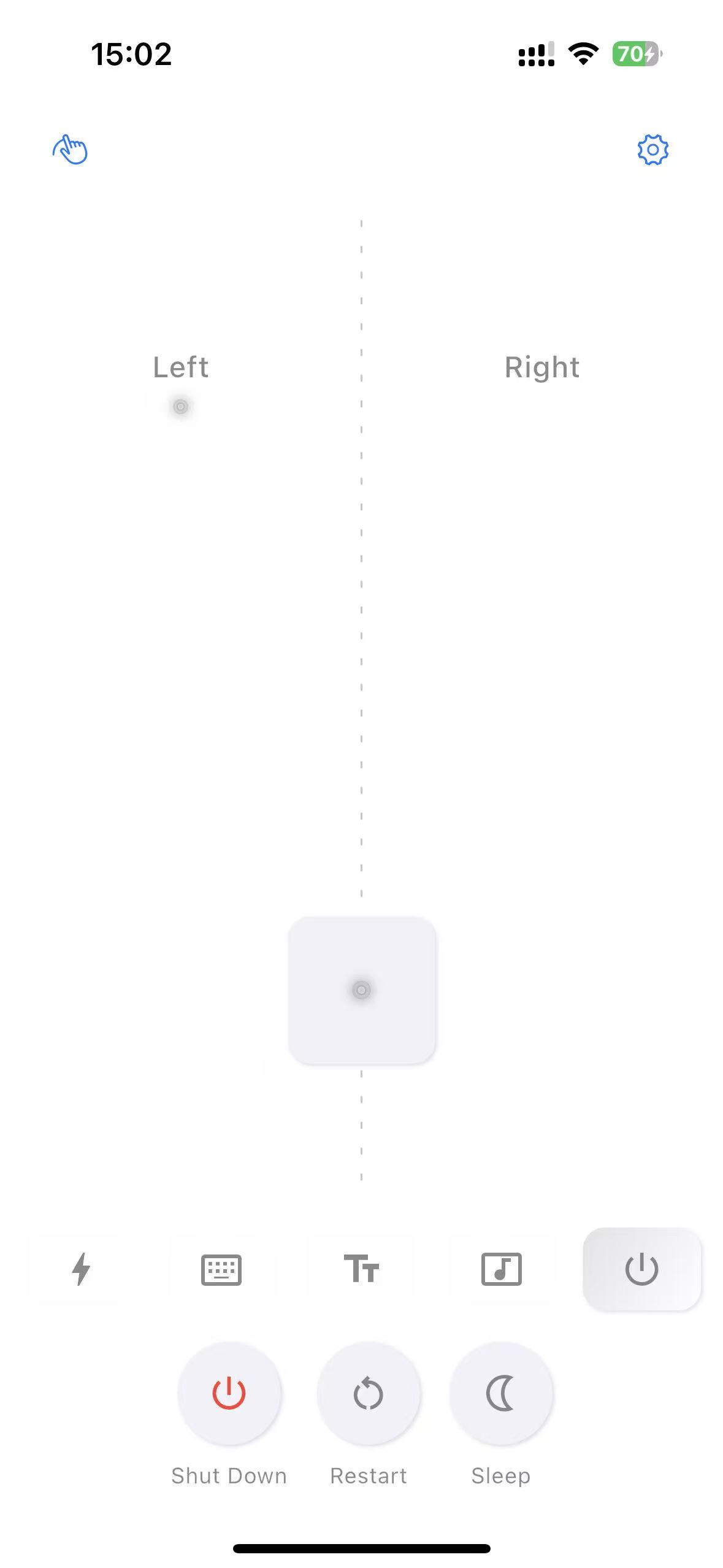
Power Control
Remote shutdown and restart
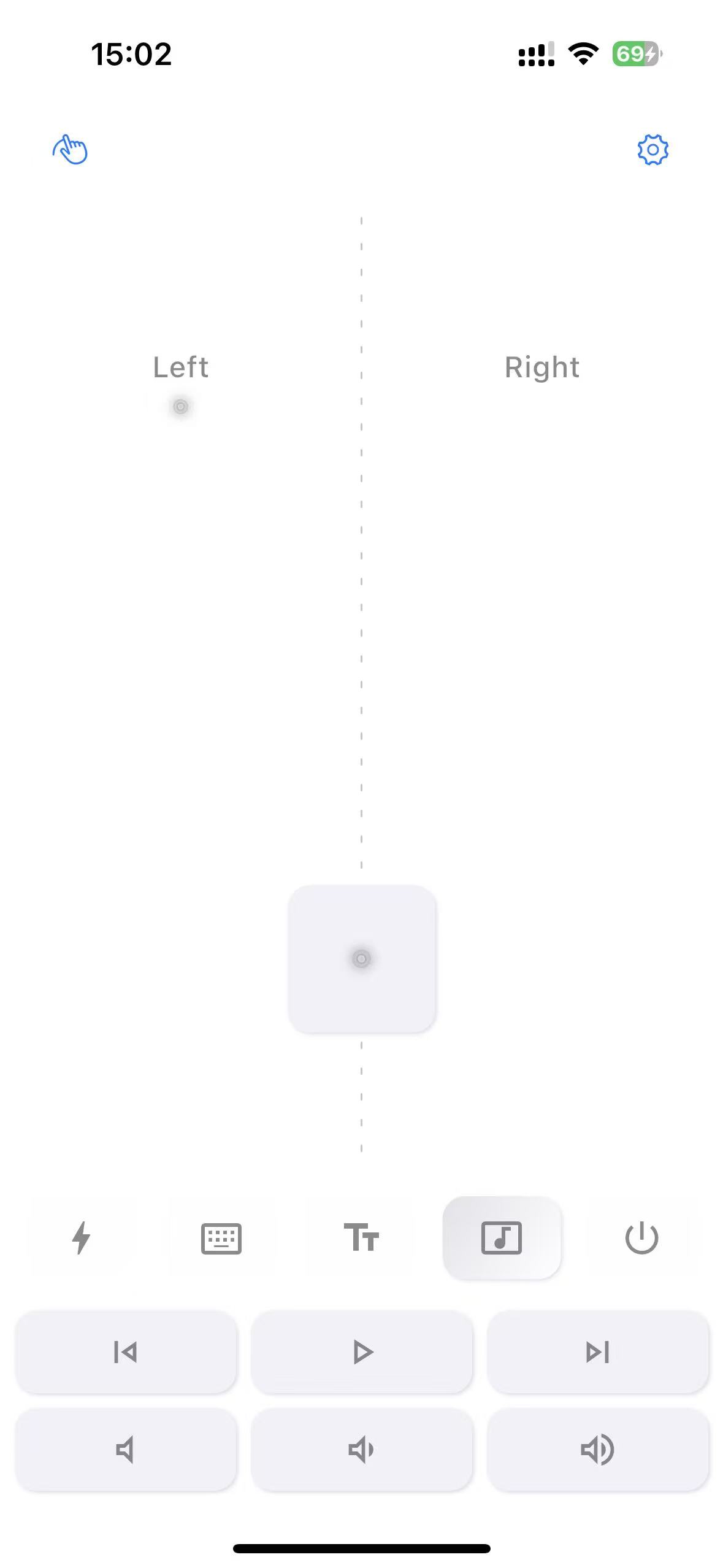
Media Control
Play, pause, volume control
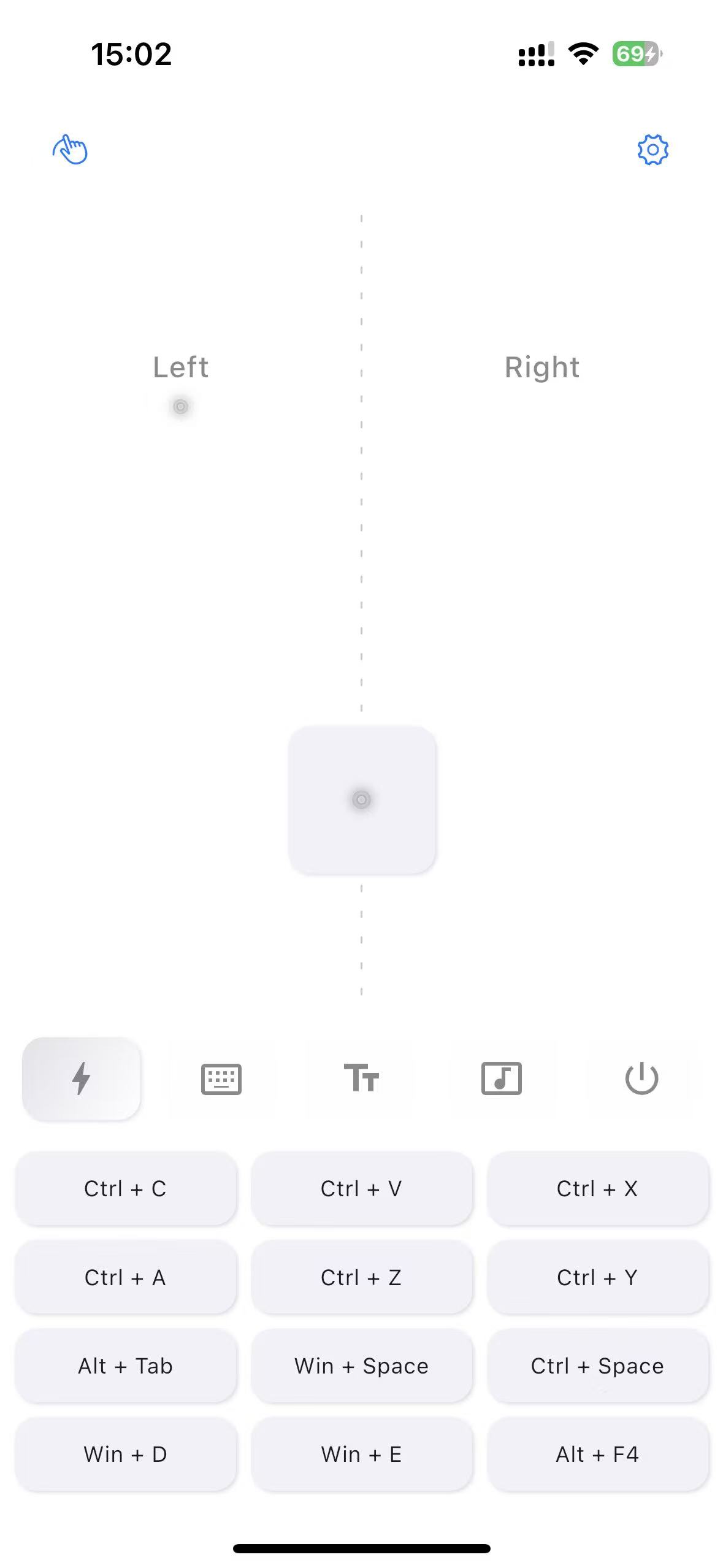
Shortcut Tool
Common shortcuts at one click
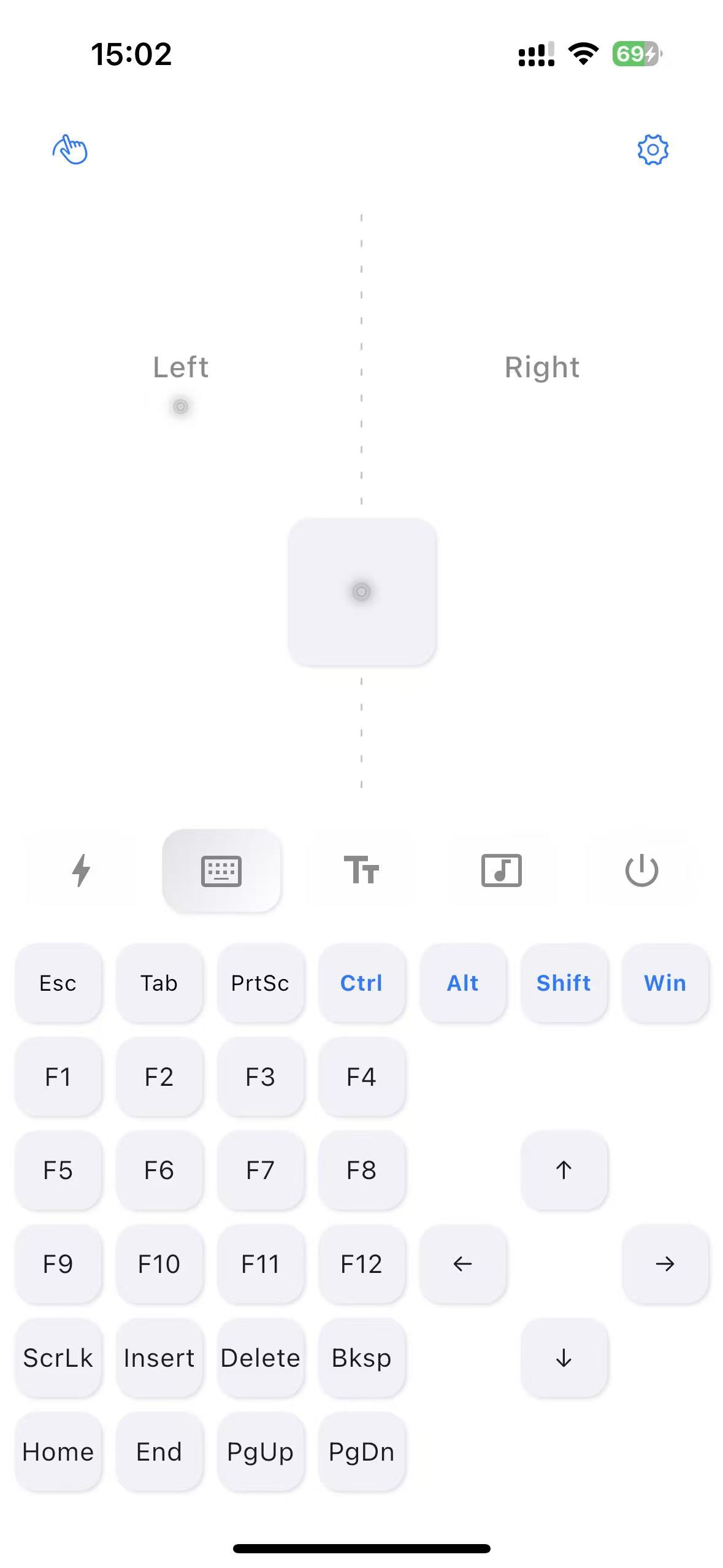
Keyboard Extension
Extended key functions
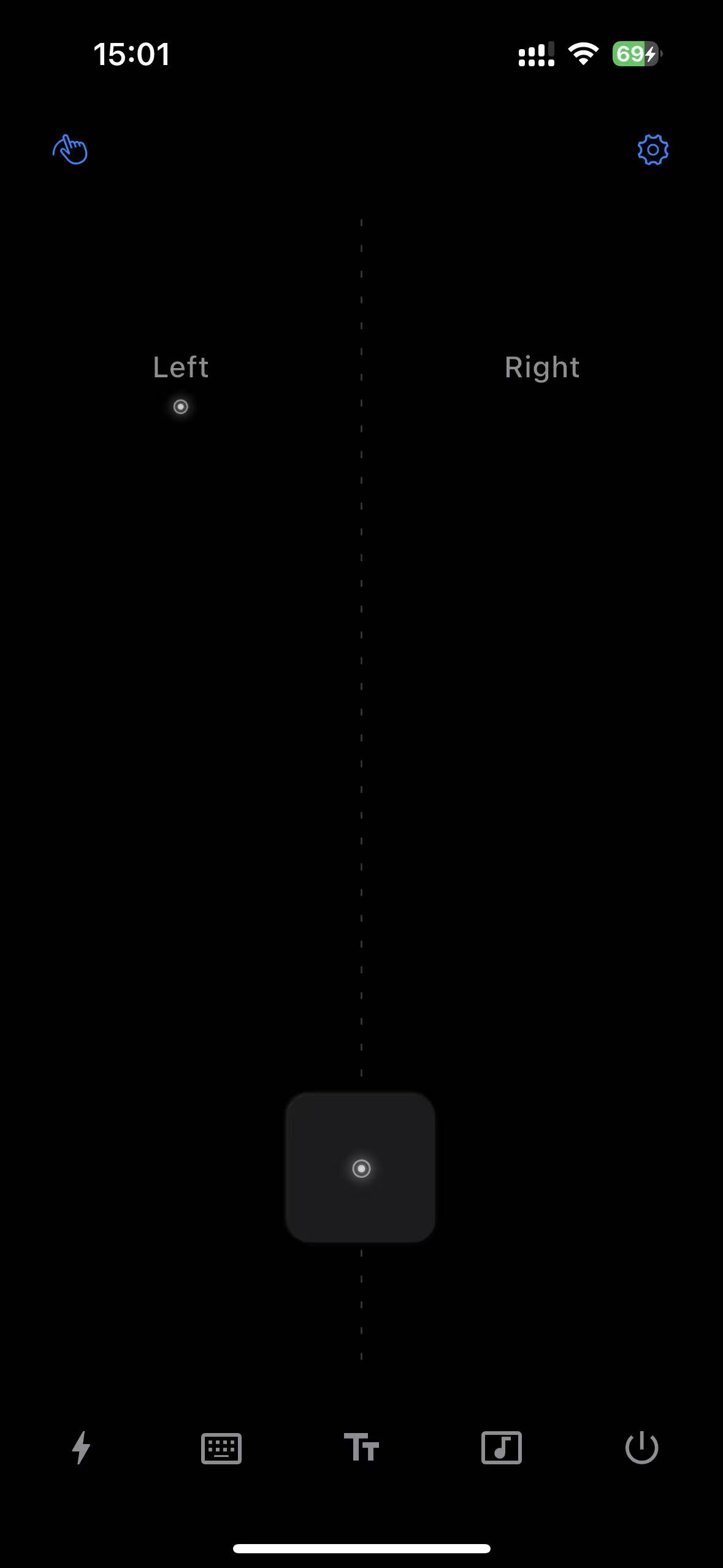
Dark Mode
Eye-friendly dark theme
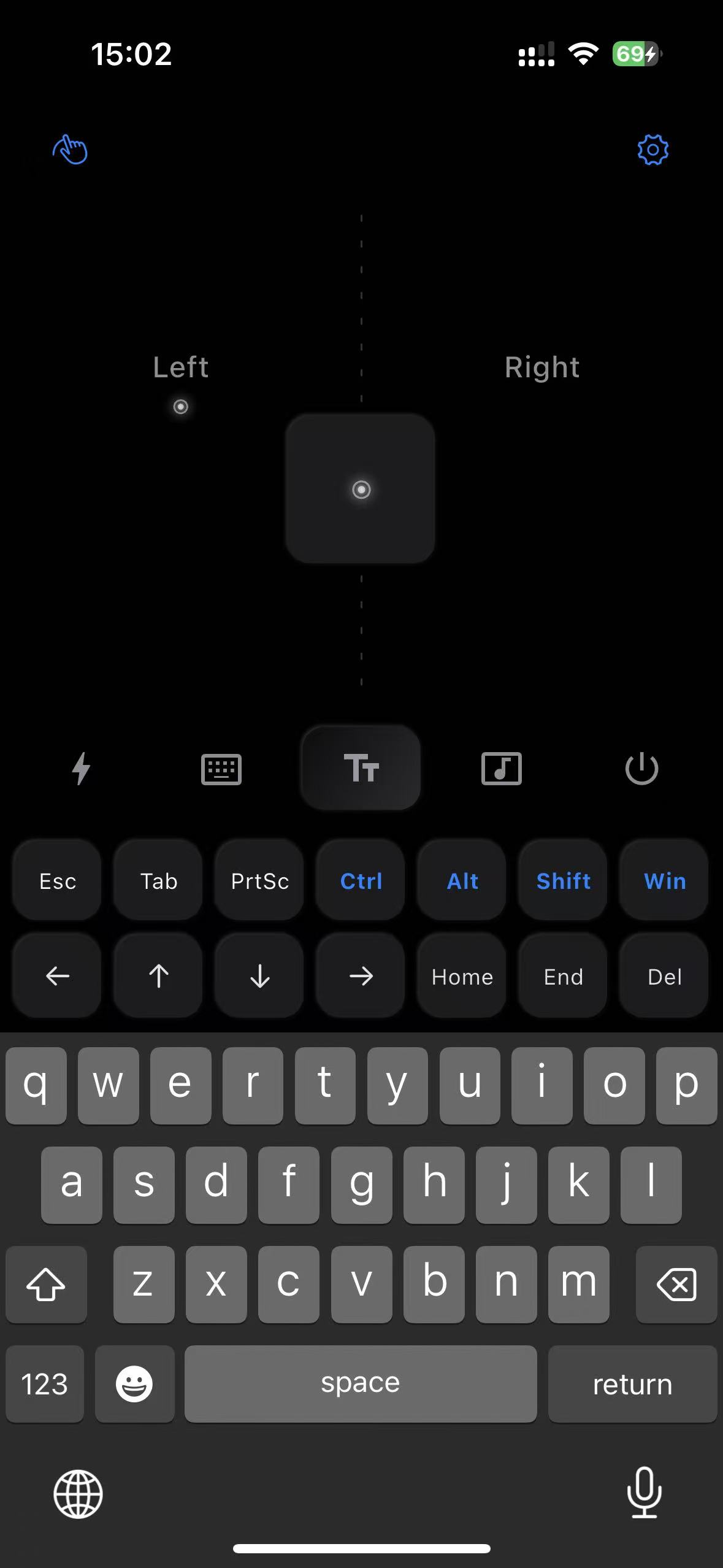
Keyboard Dark Mode
Keyboard dark theme
Used in the moments where convenience matters
Users mainly reach for MouseHero when they want quick, low-friction control from a short distance away.

Controlling my computer from bed is surprisingly reliable. The cursor response feels fast enough that I keep using it instead of getting up.
KeyboardWarriorNoMore
Developer
It works well for media playback from the couch. I mostly use it to switch episodes and adjust volume without hunting for a remote.
CouchPotatoPro
TV Series Fan
The LAN-only setup is easy to trust, and the cross-platform support makes it useful across the computers I already have.
LazyGenius
Office Worker
Great for projector movie nights. My phone becomes the remote, so I do not need extra hardware for simple controls.
CinemaAddict
Movie Enthusiast
FAQ
Quick answers about setup, compatibility, privacy, and the Android beta.